
Quizzes Tool
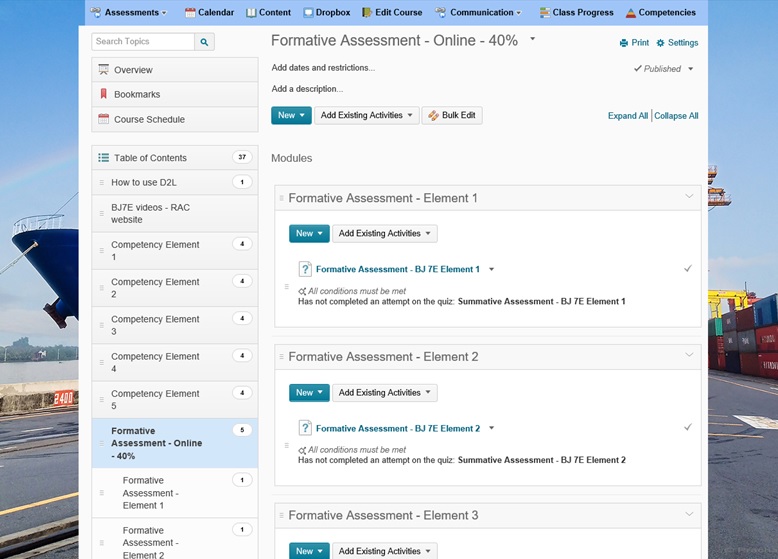
Screenshot of a list of formative assessments in a D2L Brightspace course
- What is the Quizzes Tool?
- Why would you use the Quizzes Tool?
- Scenario 1: Formative Assessment
- Scenario 2: Assessing Readiness
- Video Tutorials: Quizzes
- Video Tutorials: Question Library
- Your Turn Activity Part 1: Build a Quiz
- Your Turn Activity Part 2: Grade a Quiz
- Your Turn Activity Part 3: Modifying Scores
- Take Away: Quizzes Guide (PDF) and Question Library Guide (PDF)
What is the Quizzes Tool?
The Quizzes tool enables you to create and manage points-measured assessments. As part of your quantifiable assessment procedures, you can use quizzes to help evaluate users’ learning progress and learning outcomes.
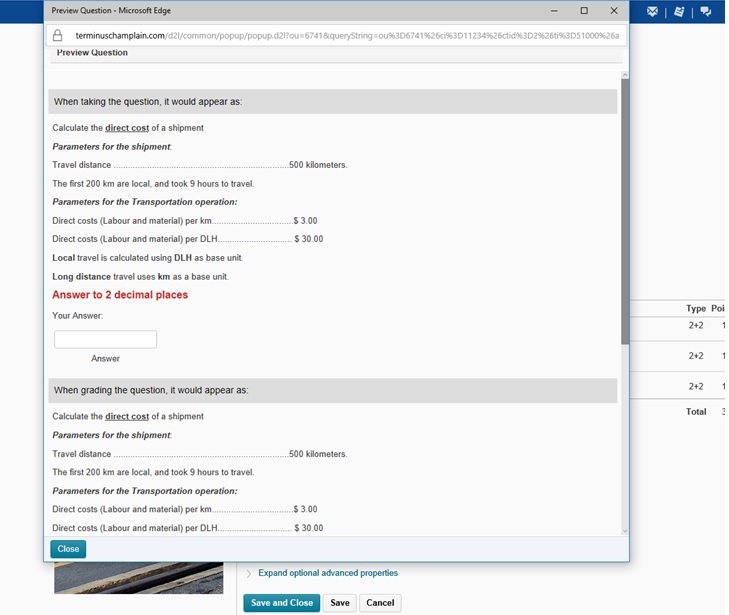
Screenshot of a Quiz Question
Why would you use the Quizzes Tool?
Use the Quizzes Tool in your course to:
- Perform ongoing assessment of learner understanding
- Formative and summative assessment
- Providing a variety of questions types and multi-media to target a range of learning styles
- Evaluate Quiz data to measure instruction effectiveness
- Randomize questions
Scenario 1: Formative Assessment
Professor Smith wants students to test their readiness by taking a practice Quiz. He creates robust feedback on each question to help students know exactly where they made mistakes or need to review before attempting the actual quiz.
Julie Simmons, a student in Professor Smith’s course, is preparing for her mid-term exam (Quiz). Professor Smith has provided a practice Quiz to help Julie prepare. Julie is able to identify areas that require further preparation in advance of the mid-term exam (Quiz).
Benefit to the Professor/TA/Instructional Designer
Well-designed quizzes with multi-layered feedback can help students to identify gaps in learning.
How does it enhance my teaching?
Practice quizzes provide statistics on overall class mastery and individual student performance to guide review sessions and quiz question improvement. Feedback on individual questions can be created once and shared with students automatically as needed.
How does it enhance my student’s learning?
Student submission views can let the student know which questions require additional study. If the instructor provides specific feedback on questions, this largely helps redirect learners to the best resources.
Scenario 2: Assessing Readiness
Professor Plum teaches advanced bio-chemistry. Some of the labs for the course are quite intricate and it is important that students perform the steps in the lab activity in the correct sequence in order to get the desired results. She wants to make sure that students have the maximum amount of class time in the lab to do their work so she doesn’t want to waste time in the lab, getting them ready. She decides to create some review materials and to provide these in her online course content. In addition, she also creates a lab quiz that students must complete before coming to class.
Student Bill Baggins is preparing for his lab in bio-chemistry. In preparation Bill explores the provided content in the course and then attempts the Quiz. He is successful on this Quiz and is confident that he is adequately prepared for the upcoming lab.
Benefit to the Professor/TA/Instructional Designer
The Quiz tool can be used to deliver an online pre-lab or pre-activity quiz that can be used to determine class readiness.
How does it enhance my teaching?
The Quiz tool can assess the knowledge and understanding of students prior to practical exercises
How does it enhance my student’s learning?
Students can maximize their lab or class time by coming prepared and ready to start the activity instead of having to wait while the teacher presents the materials and ensures others are ready.
Video Tutorials: Quizzes
Quizzes - Create a New Quiz with New Questions
Quizzes - Create a New Quiz with Imported Questions
Quizzes - Create a Quiz with a Randomized Set of Questions
Quizzes - Populate a Quiz with Questions from Question Library
Quizzes - Create Bonus Quiz Questions
Quizzes - Attach a Release Condition
Quizzes - Grant Special Access to Users for a Quiz
Quizzes - Associate a Quiz with a Grade Item
Quizzes - Create a Quiz Report
Video Tutorials: Question Library
Question Library - Benefits of Question Library
Question Library - Overview of Question Types
Question Library - Create a New Question
Question Library - Create an Arithmetic Question
Question Library - Create a Question Using a Regular Expression
Question Library - Import Questions into Question Library
Question Library - Create a New Section
Your Turn Activity Part 1
To learn more about the Quizzes Tool check out:
- Quiz Tool: Creating A Quiz in Desire 2Learn – This podcast demonstrates how to create a quiz in Desire2Learn. From John A. Logan College.
- Using the Desire2Learn BrightSpace Self-Assessment Tool – Self Assessments is a formative assessment tool that enables you to provide students with a series of questions and immediate feedback for responses. Question types available are similar to quizzes, however, student responses are not graded and self assessment questions do not have a points value or difficulty level indication. From Saskatchewan Polytechnic.
Build a Quiz

Manage Quizzes page. Any access issues with Quizzes contact Champlain’s D2L Brightspace administrator.
Access Quizzes section under Assessments.
- Under Manage Quizzes – Click New Quiz
- Enter a Name (Properties Tab)
- Add/Edit questions (Properties Tab)
- Click New > Multiple Choice
- Enter point value
- Enter question text
- Set scoring for correct answers
- Click Save
- Click Done Editing Questions
- Set Status to Active (Restrictions tab)
- Set grading options (Assessment tab)
- Click Save and Close
- Select Edit
- Make a modification to the Name of the Quiz
- Click Save and Close
- Click Copy Quiz and give the copy a new name ‘Quiz 2’
Your Turn Activity Part 2
Grade a Quiz
- Click on Preview
- Complete and submit the quiz, choosing to ‘Allow this preview attempt to be graded in the quiz area’
- Click on Grade
- Set the filter to show Preview quizzes and search
- Click the Questions Tab
- Click on a question
- Grade it
- Click Save and Close
Your Turn Activity Part 3
Modifying Scores
Section 1: Change the question for future quiz attempts
- Click Edit (Quiz)
- Click Add/Edit Questions
- Click on the question to be updated and change the scoring for one or more answers
- Click Save and Close
Section 2: Update scores for those who have taken the quiz to date
- Click on Grade
- Set the filter to show preview quizzes and search
- Click the questions tab
- Choose update question
- Click on a question
- Assign appropriate marks for the answer
- Click Save
Try this Challenge
Update your Quiz Parameters
Update your quiz with the following parameters:
- Begins a week from today at 2:00PM and is available for two weeks ending at 11:59PM
- Set quiz to be graded automatically upon completion
- Users may have unlimited attempts
- Quiz has a time limit of 30 minutes and timer is displayed
- Display the questions and answers to correctly answered questions following a quiz attempt
- Build questions that included the following:
- True and False questions that provide feedback based on the users’ response
- Multi-select questions that penalizes incorrect answers
- Copy the quiz and edit the copy to include the password “Desire2Learn”
Take Away
- Download: Quizzes Guide (PDF)
- Download: Question Library Guide (PDF)
Desire2Learn and the molecule logo are trademarks of Desire2Learn Incorporated, registered in the U.S. and other countries.
For client use only. All rights reserved.