
Class Planning & Active Engagement
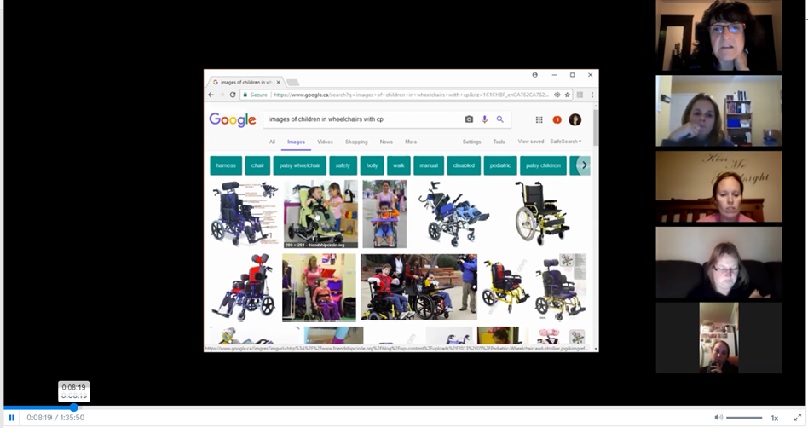
Screenshot of a Zoom class screen sharing a website
- Why Planning is Important
- Learning How Zoom Works
- How do Plan and Develop my Zoom Class or Meeting?
- Zoom Features to Engage your Class
- How do I Run my Zoom Class or Meeting?
- Hosting a Zoom Meeting
- Recording a Zoom Meeting
- Signing off from Zoom
- Resources & Troubleshooting
Why Planning is Important
Planning for any instruction is important, but when we incorporate technology like Zoom Computer Conferencing this process becomes even more paramount. Therefore, it is essential to take the time to learn and become comfortable with the technology as well as pre-plan your curriculum with the technology in mind.
View: E-learning: How to deliver an engaging Virtual Classroom presentation
This video covers some best practices on how to use the most common functionalities of synchronous software platforms for the benefit of creating engaging interactions that will enhance participant learning and retention, and that doesn’t put the participants to sleep!
Review: Crash Course: Improve Your Virtual Presentation Skills through Engagement
Engaging an audience (or class) is difficult, so make sure you’re hosting the best possible meetings and webinars. Watch a Q&A session on improving your virtual presenting skills in video meetings and webinars.
Learning How Zoom Works
Learning a new technology can be overwhelming. As the instructor it is important to take the time to practice with Zoom in order to make better use of what the platform has to offer.
Within this tutorial check out:
- Step-by-Step Guide with Zoom – This guide will walk you through the technical set-up steps for your Zoom only online session.
- Zoom Meetings – On this page you will find information on hosting a meeting, scheduling, inviting participants and recording.
How do Plan and Develop my Zoom Meeting or Class?
For any class the last thing you want is for you, the instructor, to do all the talking while your students just sit and listen. The same applies when you are teaching a virtual Zoom class. With this in mind Zoom provides a number of features that will help you create student engagement through screen sharing, polling/surveys, chat, whiteboard, annotation, breakout rooms and more.
Zoom Features to Engage your Class
- With Zoom Screen Share you can share with your attendees – Websites, Videos, Documents and more.
To learn more go to: Screen Sharing – What is it? within this tutorial. - Breakout rooms enable you to break your class into smaller virtual groups for discussion and other collaborative work.
To learn more go to: Zoom Breakout Rooms within this tutorial.
How does the Whiteboard and Annotation help engage a class?
- How do I use and Share A Whiteboard – The whiteboard feature will allow you to share a whiteboard that you and other participants (if allowed) can annotate on.
- Shortcuts For Annotation
How can Polls and Surveys be used in a Class?
- Polling For Meetings – The polling feature for meetings allows you to create multiple choice polling questions for your meetings. You will be able to launch the poll during your meeting and gather the responses from your attendees. You also have the ability to download a report of polling after the meeting.
- 3 Ways To Use Polls In Meetings – Have you ever needed an icebreaker or wanted to take the pulse of your meeting audience try using a poll.
- End Of Meeting Feedback Survey – Useful for gathering information from attendees on their meeting experience.
How to get the most out of the Chat feature?
- Controlling and Disabling In-Meeting Chat – As the host, you can control who meeting or webinar participants are allowed to chat with. You can also disable the chat for all participants or disable private chat, so participants cannot send private messages. This article includes: How to Control Chat Access and Disabling In-Meeting Chat
- Editing And Deleting Chat Messages – You can edit or delete messages, files, or images that you have already sent.
- Mark A Chat Message as Unread – You can mark a message as Unread, even if you have already read the message. This can be useful if you want to return to an important message
- Saving In-Meeting Chat – You can automatically or manually save in-meeting chat to your computer or the Zoom Cloud. If you save the chat locally to your computer, it will save any chats that you can see– those sent directly to you and those sent to everyone in the meeting or webinar.
- In-Meeting Chat – The in-meeting chat allows you to send chat messages to other users within a meeting. You can send a private message to an individual user or you can send a message to an entire group. As the host, you can choose who the participants can chat with or to disable chat entirely.
- Specific Activities That Promote Online Discussion – Review a list of various types of online discussions.
How do I Run my Zoom Class or Meeting?
Hosting a Zoom Meeting
As the instructor (or host) it is essential to Practice with the materials you plan to present with Zoom. This will help you pace what you are planning to do as well as practice with the technology. Zoom enables the host to schedule and invite attendees to a meeting.
- For more information go to: Zoom Meetings – Scheduling a Meeting and Inviting Participates to a Meeting
- Hosting a Zoom session? Here’s your pre-flight check!
Recording your Zoom Meeting
Always inform students if you are planning to record your meeting or class. If you intend to record make sure you are clear where the recording will be made accessible for students to review at a later date.
- For more information go to: Zoom Meetings – Recording a Meeting.
Signing off from Zoom
It is important to sign off and end your meeting click on: End Meeting on the right hand corner of your Zoom screen.
- For more information go to: Zoom Meetings – Signing off – End meeting
Resources & Troubleshooting
Content Source: Zoom Help Center