
Dropbox Tool

Screenshot of Dropbox section
- What is the Dropbox Tool?
- Why would you use the Dropbox tool?
- Scenario 1: Collecting Assignments
- Scenario 2: Rubrics and Feedback
- Video Tutorials: Dropbox
- Your Turn Activity: Create a Dropbox Folder to Collect Learner Submissions
- Take Away: Dropbox Tool Guide (PDF)
What is the Dropbox Tool?
The Dropbox tool is an e-solution that streamlines the submission process. It enables assignment submissions directly to the Learning Environment eliminating the need to mail, fax, or email assignments. (*Not Dropbox.com)
Why would you use the Dropbox tool?
Use the Dropbox Tool in your course to:
- Set up folders for assignment submission
- Restrict access by date, time, group membership and/or special access permissions
- See individual or group users’ submission time & date
- Download assignments to your computer
- View submissions with the document viewer on the ‘Leave Feedback’ page
- Associate Dropbox folders to rubrics and competencies
- Evaluate non-submissions and system-external submissions
- Return submissions with grades and feedback
Scenario 1: Collecting Assignments
Professor Chandler teaches a humanities class that is writing intensive. He creates Dropbox folders for each of the writing assignments his students will create and adds them to the modules appropriately. He is able to provide detailed information about the requirements of each assignment and the rubric so that students will understand how they will be assessed. When all the assignments have been submitted, Professor Chandler can assess and distribute his feedback to the students in his class via the Dropbox.
Eric Kunitz is a student in a Modern Western History course. He has a research assignment on the Industrial Revolution that he will be required to write an essay on. Eric visits the Dropbox folder for this assignment and views the criteria on which he will be assessed and checks the requirements. When he is finished he uploads his file to the Dropbox folder for submission. Following Professor Chandler’s assessment of his submission, Eric is able to view the feedback provided.
Benefit to the Professor/TA/Instructional Designer
Using the Dropbox tool for the submission of written assignments allows for easy and centralized collection
How does it enhance my teaching?
The Dropbox tool provides Professors with more methods for providing feedback. The Dropbox tool also provides a centralized repository of submitted assignments and instructor feedback.
How does it enhance my student’s learning?
The Dropbox provides an easy to access submission point for required assessment. Students can view the requirements and any supporting documents prior to submission, as well as view their feedback after their submission has been assessed.
Scenario 2: Rubrics and Feedback
Professor Daniels teaches a Public Speaking class where students give regular presentations. He uses the Dropbox tool and a rubric for collecting and assessing the presentations of his students. Having the presentation materials in a central location allows him to refer back to the presentation later and modify his comments or marks on the rubric as needed before releasing the grades to the students.
Will Wheaton is a student in the class and really values the fact that he could see the rubric while preparing his presentation. He is able to determine what the assessment criteria will be for the presentation and is provided a centralized submission point for all presentation materials that can be accessed on demand. When Professor Daniels assesses his presentation and provides feedback, Will can view it directly in the Dropbox tool.
Benefit to the Professor/TA/Instructional Designer
The Dropbox tool can be an excellent tool that allows feedback to be provided via the mark-up of a rubric for presentations.
How does it enhance my teaching?
The Dropbox tool can be used to provide information related to presentation requirements and assessment for students. Presenters can submit presentation resources to the Dropbox, making this a central collection and assessment point.
How does it enhance my student’s learning?
The Dropbox acts as a central point where students can find information about criteria and assessment of their presentation. They can also submit presentation materials for assessment.
Video Tutorials: Dropbox
Assignments (Dropbox) - Create a Submission Folder
Dropbox - Add Restrictions to a Folder
Dropbox - Grade Dropbox Submissions in Dropbox
Dropbox - Associate a Dropbox Folder with a Grade Item
Dropbox - Create a Folder
Dropbox - Grade Dropbox Submissions Offline
Your Turn Activity
Create a Dropbox Folder to Collect Learner Submissions
Access Dropbox section under Assessments, see side bar
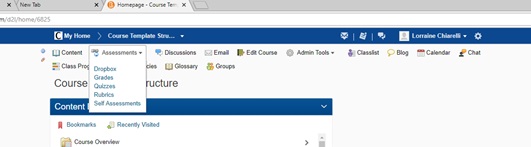
Any access issues with D2L Dropbox contact Champlain’s D2L Brightspace administrator.
- Click on New Folder
- Enter a name
- Enter the points at which the Folder will be assessed
- Enter instructions for individuals submitting
- Click save and close
- Click edit
- Change the instructions
- Click save and close
Note: Your menu bar might not have all the same items as screenshot.
Try this Challenge Part 1
Create a new Folder
- Create a New Folder
- Setup instructions for submission
- Folder submission will be graded out of 100 points
- Folder has a due date starting a week from today
- Provide one learner ‘Special Access’ for two weeks from today
- Configure submission options to allow only one file to be submitted at a time
- Configure submission options to only keep the most recent submission
Try this Challenge Part 2
Managing Dropbox Folder Submissions
- Click on preview
- Complete and submit to the Dropbox Folder by choosing to ‘Allow this preview submission to be available in the Dropbox folder”
- Click on the Dropbox Folder Name
- Set the filter to show preview submissions and search
- Click ‘Evaluate’
- Enter and Grade feedback
- Click Publish
Take Away
- Download: Dropbox Tool (PDF)
Desire2Learn and the molecule logo are trademarks of Desire2Learn Incorporated, registered in the U.S. and other countries.
For client use only. All rights reserved.