
Grades Tool

Grade Sheet from a D2L Brightspace course
- What is the Grades Tool?
- Why would you use the Grades tool?
- Scenario 1: Feedback to Students
- Scenario 2: Digital Gradebook
- Video Tutorials: Grading
- Your Turn Activity 1: Configure your Course Grades
- Your Turn Activity 2: Build a Grade Scheme
- Your Turn Activity 3: Building Grade Categories and Items
- Take Away: Grades Tool Guide (PDF) and Class Progress Guide (PDF)
What is the Grades Tool?
The Grades tool allow Course Designers to identify assessment items for a course. The assessment items can then be associated / linked to assessment activities within the course, which simplifies the value transfer. The Grades tool functions as a manageable record of student achievement on assessable items within the course.
Why would you use the Grades Tool?
Use the Grades Tool in your course to:
- Establish a grading system for the course
- Manage assessment tasks delivered to learners
- Submit feedback and grades to learners
- Control when grades are released to learners with granular control over how grade is displayed
- Adjust and manage grade calculations prior to final grade release for a course
Scenario 1: Feedback to Students
Professor Collins teaches an Advanced English Composition course and that has many small weekly writing assignments. This results in a lot of paperwork returning all those assignments and recording the grades. He uses the Grades tool to collect and communicate how students are performing on their assessments for the course.
Sam Sousa is a student in Professor Collins class and appreciates that he can access his Grades to check on how he is doing in his course. He is reassured that he is doing well and feels more relaxed that he is on the right track. He can view his Grades at any time by accessing the Grades tool in his course.
Benefit to the Professor/TA/Instructional Designer
Providing regular feedback on their progress is important to let students know how they are doing in the course and to motivate them to improve.
How does it enhance my teaching?
The Grades tool can greatly streamline the grading process for instructors. It also ensures that there are no calculation mistakes due to human error. There is a record of every student’s grade on every assignment that both instructor and student can access at any time.
How does it enhance my student’s learning?
Having ongoing access to all their grades is very helpful and reassures the ones doing well that they are on the right track.
Scenario 2: Digital Gradebook
Professor Collins is running an astrology course this semester. Prior to course start she has developed her course syllabus with various graded assessments. In order to manage and configure these activities, she adds them to the gradebook and associates them to the appropriate activities. Throughout the course students’ complete activities and the gradebook is automatically updated allowing her to track students’ progress. This allows her to gain valuable insight into potential final grades.
Sam Slacker, a student in Professor Collins’ astrology course, has concerns about his final grade after his mid-term exam. In order to help alleviate his concern, Professor Collins directs him to the gradebook where he can see his various grades to date as well as what items are still left to be completed. Working with the tool, he is able to determine what his performance needs to be on the remaining activities in order to achieve his desired grade.
Benefit to the Professor/TA/Instructional Designer
The Grades tool allows for auto-calculation of assessments, final grades, identifies the grades based assessable items and helps organized activities from an assessment perspective.
How does it enhance my teaching?
Grades allow professors to manage and identify all assessable items in their course, manage the grade weights/points towards the final grade. Grades can be easily copied/replicated in future courses through the copy feature.
How does it enhance my student’s learning?
The Grades tool provides insight into what activities students will be assessed on. Students can track their performance on grades based assessable items.
Video Tutorials: Grades
Grades - Understanding the Grades Tool
Grades - Enter Grades
Grades - Create a Grade Book Category
Grades - Create a Grade Item
Grades - Create a Grade Scheme
Grades - Associate an Activity with a Grade Item
Grades - Associate an Activity with a Grade Icons
Your Turn Activity 1
To learn more about the Grades tool check out:
- The Desire2Learn BrightSpace Grades Tool Setup – Course designers/Instructors can set up grade books that reflect their approach to evaluation. You control the grading formula used to calculate grades; what projects, assignments, tests, etc. are graded; how grade items are associated with other tools; and when grades are released to users and what information they see. The Grades tool can be accessed from the course navbar ‘Assessments’ drop down. From Saskatchewan Polytechnic
Configure your Course Grades
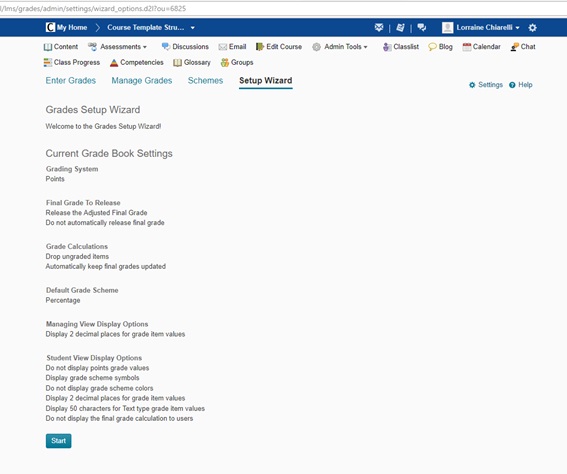
Grades setup Wizard page. Any access issues with Grades contact Champlain’s D2L Brightspace administrator.
Access Grades section under Assessments
- Complete the steps in the Grades setup Wizard
Click start at the bottom of the page, see side bar
Try this Challenge
Prepare your Grades Settings
Prepare your grades settings with the setup wizard to do the following:
- Use a weighted grade system
- Discounts ungraded items from the final calculation
- Instructors can modify the student’s final grade
- Prohibit students from seeing the Point value for grade items.
Your Turn Activity 2
Build a Grade Scheme
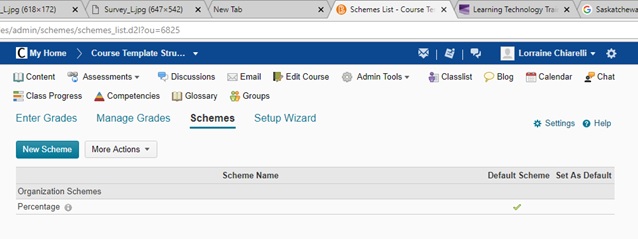
Grade Schemes page.
Go to the Schemes tab
- Click new scheme
- Set scheme ranges
- Click save
Try this Challenge
Set up Student Achievement Criteria
- Create a grade scheme that will show learners that they have achieved Gold, Silver, or Bronze
Your Turn Activity 3
Building Grade Categories and Items
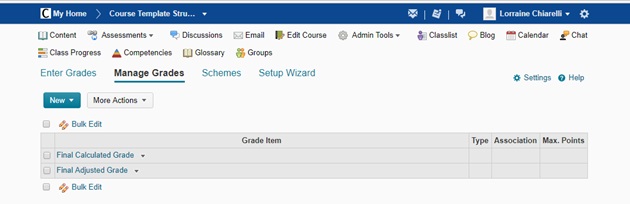
Manage Grades page.
Go to Manage Grades tab
- Click on New Category
- Enter a Category name
- Click save and close
- Click on New Item
- Choose Numeric
- Enter an Item name
- Select a Category for the Grade Item
- Click save and close
- Edit the Grade Item to change the name
Try this Challenge
Edit and Create more Categories and Items
- Edit your Grade Category to automatically assign the weight of all new Items equally in the category
- Create two more Grade Items independent of the Category
- One Grade Item that is out of 25 points and uses the default settings
- One Grade Item that is out of 20 points and uses the custom grade scheme and shows the point value to learners
Take Away
- Download: Grades Tool Guide (PDF)
- Download: Class Progress Guide (PDF)
Desire2Learn and the molecule logo are trademarks of Desire2Learn Incorporated, registered in the U.S. and other countries.
For client use only. All rights reserved.