
Zoom Meetings
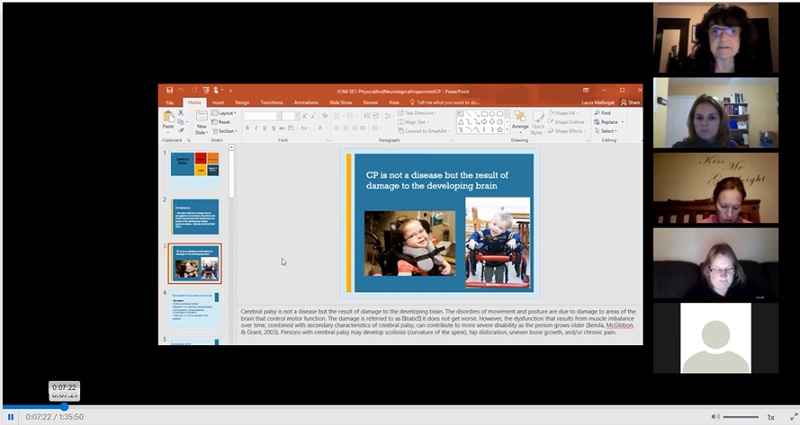
Screenshot of a Zoom class screen sharing a PowerPoint
- What is a Zoom Meeting?
- How do I Set up and Host a Meeting?
- Scheduling a Meeting
- Inviting Participants to a Meeting
- Recording a Meeting
- Signing off – End Meeting
- Resources & Troubleshooting
What is a Zoom Meeting?
A zoom meeting (or class) is the virtual space which enables multiple people to engage, collaborate and communicate online. With the addition of video, audio and text participates can see, hear and chat with each other in real time.
View: A Meeting with Zoom
You can view, manage, and schedule meetings from the Zoom web portal, the Zoom desktop client or the Zoom mobile app.
View: Basic Functions in a Zoom Meeting
How do I Set up and Host a Meeting?
As a reminder it is important as the instructor (host) that you are comfortable using the Zoom platform and its various features.
View: Meeting Controls
- An Overview of Zoom Meetings – You can view, manage, and schedule meetings from the Zoom web portal, the Zoom desktop client or the Zoom mobile app.
- What are the Meeting Host Controls? – Host controls allow you as the host to control various aspects of the Zoom Meeting, such as managing the participants.
- Learn more about Zoom Settings – Before your meeting review the Zoom setting to make sure everything is working as it should.
Scheduling a Meeting
- Meet now vs Schedule meetings – This article covers: Scheduled Meetings and Meet Now (Instant Meetings)
- How Do I Update A Scheduled Meeting? – (Video with step by step text instructions) – An overview on the multiple methods to schedule a meeting
- How do I Schedule Recurring Meetings? – Zoom allows you to schedule meetings with multiple occurrences, so that each occurrence uses the same meeting ID and settings.
- “Your Attendees Are Waiting” Email Notification – Zoom hosts can receive an email notifications if participants have joined the meeting before the host has.
Inviting Participants to a Meeting
View: How do I Join a Meeting?
Video provides options for joining meetings based on your requirements and to ensure the best meeting experience possible.
- How do I Invite Others To Join a Meeting? – This article covers: Instant Meeting Invite and Scheduled Meeting Invite
- How do I Start or Join a Scheduled Meeting as the Host? – If you are the meeting host and need to start or join a scheduled meeting, there are several ways that you can join the meeting. As the host, you can start the meeting from the Zoom desktop client for Mac, PC or Linux, the Zoom app for Android or iOS, your web browser, or an H.323 or SIP device.
Recording a Meeting
View: Recording a Zoom Meeting
View: Technology Webinar: All About Recording
- What is Automatic Recording? – Automatic recording is an option that allows the host to start Local Recording or Cloud Recording automatically when the meeting starts.
- How do I use Recording Management? – Recording Management allows Account Owners and Admins to manage their users’ cloud recordings, including view, delete, and share the video, audio, transcript, and chat files.
- How do I Find My Recording? – You can record your Zoom meeting or webinar locally to your computer or to the Zoom cloud with a Pro license. Files stored on the cloud can be accessed on your desktop or from the web. Locally recorded meetings and webinars can only be accessed on the computer that recorded the meeting.
Signing off – End meeting

Once you click on end meeting this pop up will appear providing you the choice to end meeting or to leave the meeting.
End Meeting: This will end the meeting for all participants. If you want to have the meeting continue, you should give another participant host control before leaving the meeting.
- Will My Meeting Time Out? – Your meeting may time out based on the type of account, how many participants join, and if only one participant remains in the meeting.
Resources & Troubleshooting
Content Source: Zoom Help Center