
Step by Step Set-up Guide
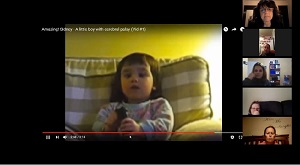
Screenshot of a Zoom session with distance attendees
- Step by Step Guide with Zoom
- Steps 1-7: Pre Set-up
- Step 8: Microphone
- Step 9: Speakers
- Step 10: Webcam
- Step 11: Inviting participants
- Blending On-campus & Distance Learners (Hybrid Classes)
- Screen Sharing for On-campus & Distance
- Screen Sharing Issues
Step-by-Step Guide with Zoom
This guide is designed to walk you through the technical set-up steps for your Zoom only online meeting (class).
For information on combining an on-campus class with distance learners go to: Blending On-campus & Distance Learners
Steps 1-7: Pre Set-up
- If you share your Zoom account with others, before continuing, consider if they might be using it.
- Alternative Host – The alternative host option allows you to schedule meetings and designate another Pro user on the same account to start the meeting or webinar if you are unable to.
- Once you’ve confirmed no one’s using the Zoom account, log in.
- If you have Zoom on your machine already, sign in from there. Press the Windows button, and search for “Start Zoom.”
- If not, sign in here and say you want to Host a session.
- Before proceeding further, make sure your webcam is not being used anywhere else in Windows. If the Windows Camera app is open, for example, close it.
- If the webcam is being used elsewhere, you won’t be able to use it in Zoom.
- Once Zoom opens on your computer, you should see this:
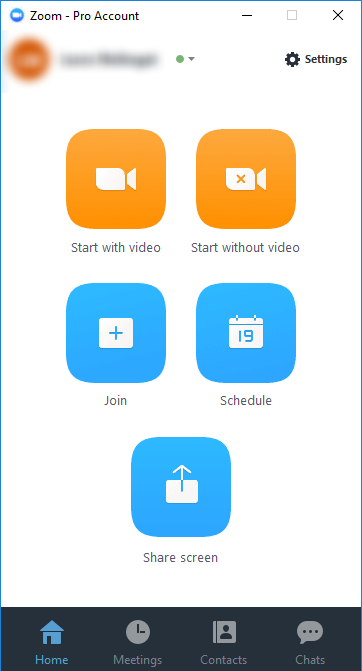
- Click “Start with Video.”
- When the “Choose ONE of the audio conference options” dialog appears, select “Join Audio Conference by Computer.”
- Notice the bar the bottom. If it ever disappears, just hover your mouse near the bottom of the window to make it re-appear.

Step 8. Microphone
Make sure your microphone is working as expected.
- Depending where you’re using Zoom, you might have multiple microphone options. Select the one you desire by clicking on the arrow next to the microphone icon.

- And then selecting an option from the “Select a Microphone” menu:
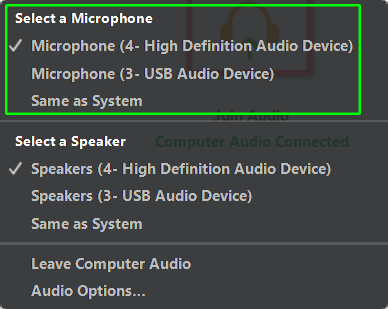
- After selecting a microphone, you need to make sure it works as expected. Try speaking as loudly as you intend to speak during your Zoom presentation, and see if the microphone symbol fills up with green. The higher the green goes; the more sound is being picked up by the microphone.

- If you don’t see any green while you speak, check to see if your microphone is muted in Windows:
- Right-click the speaker icon (
 )in the Windows system tray, and select “Recording Devices.”
 - Right-click the microphone, and select “Properties.”
- In the “Microphone Properties” dialog, switch to the “Levels” tab and make sure the “Microphone” meter isn’t set to 0, and that the icon on the right looks like this:
 (unmuted), not this
  (muted).
- To learn how to test the microphone specifically within Zoom, see this video.
Step 9: Speakers
Make sure your speakers are working as expected.
- Depending where you’re using Zoom, you might have multiple speaker options. Select the one you desire by clicking on the arrow next to the microphone icon.
- And then selecting an option from the “Select a Speaker” menu:
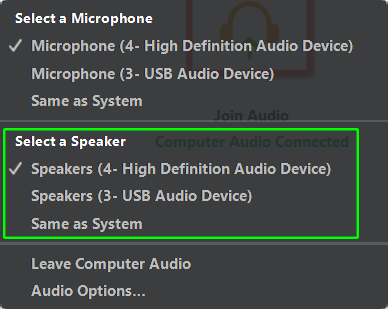
- After selecting a speaker, make sure it’s volume isn’t muted. To do this in Windows:
- Left-click the speaker icon () in the system tray, and confirm that the speaker name above the volume bar corresponds to the one you selected in Zoom. Then, simply make sure volume slider isn’t set to 0, or too low to be heard properly.
- Left-click the speaker icon (
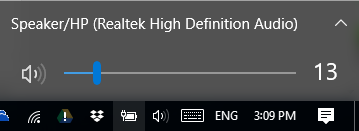
- If the speaker doesn’t match the Zoom speaker, simply left-click the speaker name, and select the correct speaker.
- To learn how to test the speakers specifically within Zoom, see this video
Step 10. Webcam
Make sure your webcam is working as expected.
- Depending where you’re using Zoom, you might have multiple webcam options. Select the one you desire by clicking on the arrow next to the Start/Stop Video icon.
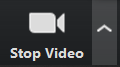
- And then selecting an option from the “Select a Camera” menu:
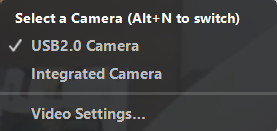
- After selecting a webcam, make sure it’s the one you expected by clicking Start Video. Make sure the webcam isn’t being used somewhere else in Windows. For example, make sure the Windows Camera app isn’t open.
- You can also test your webcam ahead of time in Zoom directly.
Step 11. Inviting People to your Session
Use the invite button to invite people to your Zoom session:
 Go to: